Legistar Training: Drafting and Approving – February 5, 2025
STREAMING COPY IN PREPARATION — RECORDING AVAILABLE FROM THE ORIGINAL SOURCE
Legistar Training: Drafting and Approving (February 5, 2025)
This was the second day of a Legistar training series for Napa city staff, led by Lauren from Granicus. The session covered the process of drafting legislative files, routing them through approval sequences, and acting as an approver, followed by searching and local settings. The team also discussed template importing and rescheduled the next training.
Discussion Items
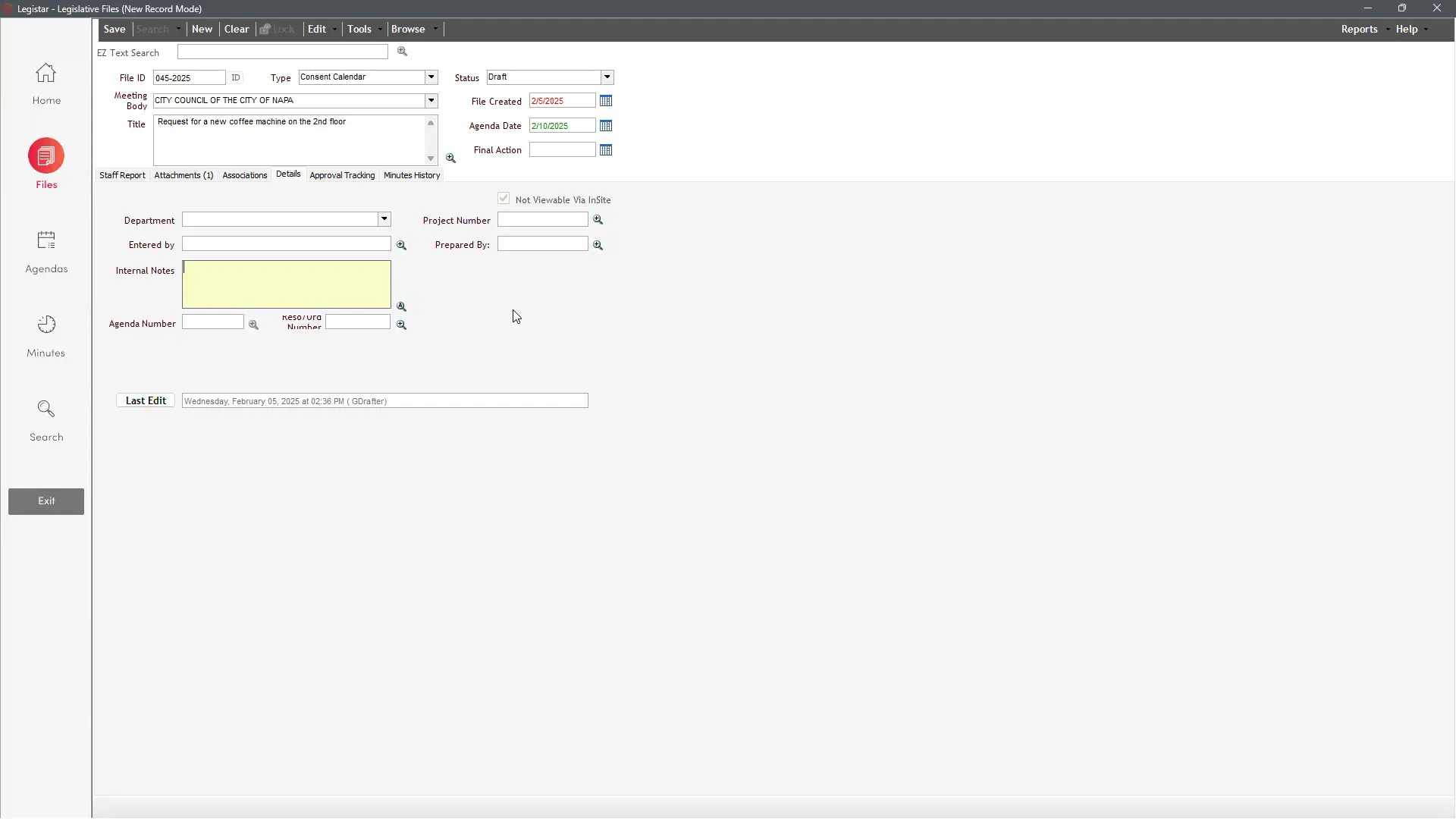
- Drafting a File: Lauren demonstrated how drafters create a new file, select the meeting body, agenda date, title, and use the Staff Report tab to open the Word template. Drafters cannot change the file status directly; approval workflow or an admin is required.
- Importing Templates: Sam showed how she imports a saved proclamation Word template from her desktop into Legistar. Lauren clarified that importing works if the file is saved in the correct Word template format. The team found this useful for proclamations and said they learned something new.
- Attachments: Lauren covered adding, renaming, replacing, and removing attachments, plus the 'print with reports' and 'show on internet reports' options. She recommended keeping attachments under 100 MB to avoid browser timeouts. Sam and Tiff found that running Reports > Staff Report > File Packet as a single PDF includes attachments, resolving a prior question.
- Associations and Details: Explained code sections, indexes, sponsors, and related files. The City does not currently use associations. Details included department, entered by, notes, agenda number, resolution/ordinance numbers (assigned later), Insight visibility, project number, and prepared by.
- Approval Sequences: Lauren showed how to add, edit, and save custom sequences. For closed session items, Tiff asked about a faster method; Lauren confirmed that users with sufficient permissions can bypass the sequence entirely by changing the status directly to Agenda Ready.
- Approver Workflow: As Granicus Approver, Lauren demonstrated reviewing items, reviewing prior notes, and taking actions: approve, disapprove (requires notes), or delegate. The team cautioned against disapproving because it restarts the sequence; they prefer using the pause feature for edits to avoid forcing prior approvers to re-review.
- Mobile Approvals via Insight: Lauren showed how to approve through the public Insight portal, including viewing documents and attachments. The City's system currently directs users to desktop Legistar for approval. Staff felt they would rarely use it, though it can be a backup for items already reviewed.
- Searching: Demonstrated searching in the Files module by meeting body and agenda date, exporting to Excel or PDF, and using the Search module for keyword searches. Sam asked whether exported reports can show the current approver; they cannot, so a feature request will be submitted.
- Local Settings: Covered personal settings, recent files limit, department, controlling body, color themes, password changes, and out-of-office with an alternate approver.
Key Outcomes
- The next session is Friday, February 7, on agendas and agenda creation.
- The training originally scheduled for Tuesday, February 11 was moved to Wednesday, February 12, 2025 at the same time (12:30–2:30 PM) due to a conflict.
- Staff learned that the import feature can be used for saved templates, and that the 'view' button in Staff Report actually allows editing (as discovered during the session).
- Staff learned how to generate a single PDF file packet that includes attachments via Reports > Staff Report > File Packet.
- A feature request will be submitted to Granicus to include the current approver in exported reports.
Meeting Transcript
Alright, welcome guys. Today is day two of Legistar training. On our last session, we talked about Legistar administration. Specifically, we talked about people and users and government bodies and dependencies. So we walked through a lot of information there. If you guys do need access to that call, you can find it in your media manager archives. I can't remember, I think I've uploaded it already. If I haven't, I'll do it after our call today. Today we are talking about drafting and approving. So here we're going to be talking about the process of creating an agenda item all the way through to sending it to our approvers and having them take actions. We're also going to talk about some fun little things at the end of the call, like searching for files within the Legistar software and the different places you can do that. We're also talking about your local settings here in Legistar as well. Because for all of you who are on the call, I think we are all very creative people. I think we all have some personality to us. And personally, I like using those local settings to customize my Legistar software to make it kind of fit my needs as well as possible. So we're going to talk about how you can do that. Now, because we are talking about drafting for this first part of the call, I have created a drafter in your system, lovely Granicus Drafter, and she is going to guide us through the process of drafting a file in your system. And specifically, because she's been given the drafter permissions, she is going to be able to show us what that process looks like as a drafter. So very very important here. So that's going to be very helpful for us here as well. Any questions before we go ahead and get started for the day. Alright. Well, then in that case, well, let's go ahead and get right into it. Now, as you can see here, I am currently on my dashboard, and here on the dashboard, I'm going to see everything broken up into four quadrants. Here for my drafters, I do have access to agendas and minutes. That is evidenced by the fact that my agendas and minutes are showing with a white background here. If you were ever to say that you wanted to revoke permissions, and so they cannot enter those modules at all, then we will both see that these will be grayed instead of white, but we'll also see that we cannot hover and actually have a clickable module here on the left-hand side of our screen. Now, in addition to being able to see our recent agendas and minutes, here on the right hand side of our screen, we're going to see those recent files and approval requests. For anyone who is not marked as an approver, so they don't have that approver checkbox in admin checked, these people will never expect to see anything in that approval requests box. Here for your recent files, we'll see all of the files that we've looked at within recent history with our most recent files being at the top of this box and the least recent being at the bottom. We can always expand the number of files that can live in this box. So by default, these are going to be set to 20. But if we decided that we wanted to allow people to see more than just 20 files, we could absolutely allow them to update their local settings where they could say, I want to be able to see 50 files in my recent files section. In that case, you'll see a little scroll bar appear here on the right hand side inside the box. They'll be able to scroll and find additional files. Now here we're going to talk about the creation of a new file. So to do that, we are going to go over to the files module here on the left-hand side of our screen and go ahead and open that up. Now here when we open the files module, we will find that we are landing in search mode. I know that because here along the very top of my screen, I am seeing legislative files search mode. It's important for my drafters to remember not to add any information for new file creation to these fields while we're still in search mode. So if they are looking to create a new file, they'll go ahead and click new along the top toolbar here. Now once we select new, we will see that a new file ID will be generated. As well, we'll also find that we'll have a file type assigned. This is going to be based off of this person's basic or default file type. Again, this is something that can be changed for each user. So if we do have certain users who only create files for certain meeting bodies or only create certain types of files, that's something that can be updated here within their local settings. Here we'll see that by default, we have our file, our file ID, our type is consent calendar, and our status is draft. As a drafter, I do not have access to change the status of this file. So here, as you can see, I am clicking on that drop-down box, and I'm getting a pop-up message here on my other screen, letting me know that this field is locked and can't be edited. That's pretty standard here.
openpublica.com