Legistar Agenda System Training Session - February 7, 2025
STREAMING COPY IN PREPARATION — RECORDING AVAILABLE FROM THE ORIGINAL SOURCE
Legistar Agenda System Training Session - February 7, 2025
This was a training session conducted by Lauren (a Granicus/Legistar trainer) for City of Napa staff (including Sam, Tiffany, and Natalia) on the full agenda creation and publishing workflow in the Legistar system. The session covered creating meetings, managing agenda statuses, generating agenda content, adding and moving items, using forced headers, previewing drafts, publishing to Insight, and unpublishing. Participants also discussed optional features like auto-numbering, the free GovDelivery service for automated agenda distribution, and bulk status updates for legacy files.
Consent Calendar
- No consent calendar items were discussed; the session was purely procedural training.
Public Comments & Testimony
- No public comments or testimony were presented.
Discussion Items
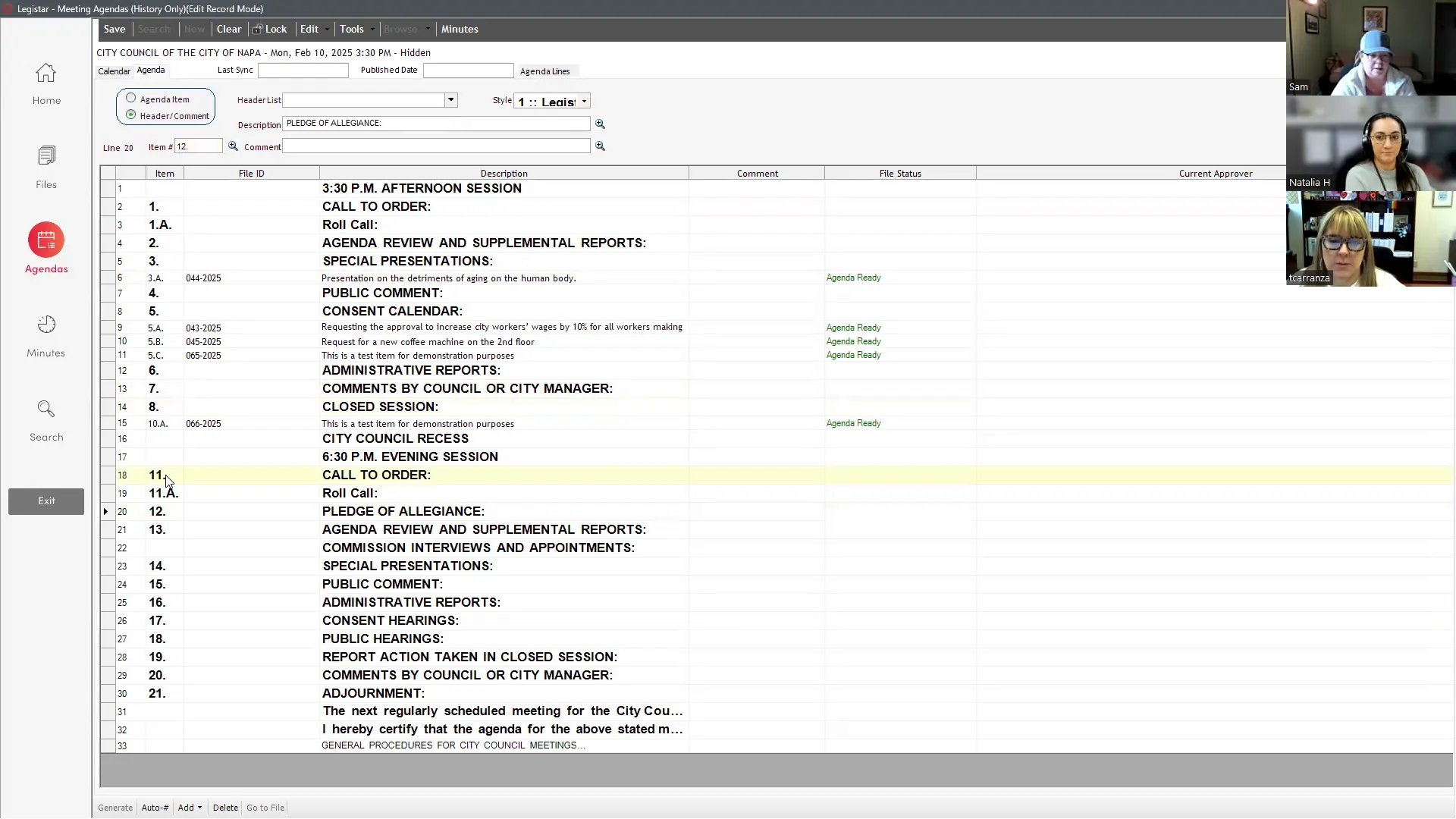
- Meeting Creation and Statuses: Lauren demonstrated creating a new meeting, setting the date, location, and notes. She explained the status options: Closed (prevents new submissions), Draft (allows drafters to submit items), Final/Final Revised (for published agendas), and Hidden (training or internal use, not visible to the public). Sam confirmed that the Hidden status was newly added by Carolyn and was previously not available.
- Generating the Agenda: Once a meeting is created, the Generate button populates agenda headers and items based on the meeting body’s configured rules (e.g., consent items go to the Consent Calendar section). Files with a status of Draft or Approval Review appear; the trainer showed how to check approver fields and escalate or delegate approvals.
- Adding and Moving Items: Single items can be added via a blank line and the File ID dropdown. Multiple items can be added via the Add Many Lines feature (right-click or bottom toolbar). Items can be dragged and dropped to correct sections using the triangle icon on the far left. The trainer noted that items in green are not yet assigned to any agenda.
- Auto-Numbering and Header Management: The auto-numbering feature renumbers all line items but does not renumber section headers. Staff noted that they currently delete unused headers (e.g., consent hearings) and manually renumber headers. The trainer suggested marking headers as not forced so they only appear when items exist under them, reducing manual cleanup. Staff agreed this would be useful for sections like “Consent Hearings” and “Public Comments by Council” that are often absent.
- Draft Preview and Settings: The trainer ran a draft report (PDF) and explained each report setting: Show Cover, Show File ID, Show Agenda Status, List Attachments, Show Agenda Notes, Show Legislative File History, Keep Section Together, Show Recommended Action, and Show Dot Dot Title (which should remain unchecked to prevent drafters’ formatting overrides). A page break was added before the Closed Session section by inserting a blank line and writing “page break” as a header/comment.
- Publishing Process: To publish, the status must be changed to Final (or Final Revised for republication). The workflow is: first Export Data (sends information to Media Manager for streaming), then Publish to Insight Calendar (sends the agenda to the public Insight site). After export, a pop-up confirms the event number. Insight typically updates in 15–20 minutes.
- Unpublishing: Mistakes can be corrected by using the Unpublish Agenda from Insight option in the Tools menu (in Legistar) or by signing into Insight, going to Meeting Details, and clicking Delete on the published agenda. After corrections, the full export-publish cycle must be repeated.
- GovDelivery Free Notification Service: The trainer noted that Legistar supports a free GovDelivery integration that lets citizens sign up for email notifications when agendas are published. Staff expressed strong interest; Lauren offered to connect them with Brian and a GovDelivery specialist to set it up. Currently they maintain a manual Outlook list.
- Minutes Tab: The trainer showed that from the agenda view, users can navigate directly to the minutes tab for the same meeting date, and vice versa. This connection also triggers a data export update.
- Upcoming Training: The next session will cover minutes and Live Manager consent voting.
Key Outcomes
- Staff learned several new features: auto-numbering via the bottom toolbar (previously done manually), the “not forced header” option to auto-hide empty sections, and the ability to navigate directly between agenda and minutes tabs.
- The GovDelivery free notification service will be pursued: Lauren will contact Brian (for Insight setup) and a GovDelivery specialist to migrate their existing Outlook subscriber list.
- Bulk status updates for legacy files (e.g., 2020 items still in draft) will be discussed with Carolyn; possible to set a final action date by date range or file type.
- No formal votes or decisions were taken; this was a training session without a public meeting agenda.
Meeting Transcript
Okay, welcome back team. Today we are talking about agendas here in the Legistar system. We're going to talk about all the ins and outs from creating all the way down to publishing. And so of course, today we'll be spending most of our time here in the agendas module. I'm going to go ahead and navigate there from my dashboard. Now, while I do, of course, encourage that you follow along with what I'm doing, I will ask that you don't click the buttons when I click the buttons today. So if you do decide to go into the agenda while we're looking at it, just don't click generate or any of those other things, as we will get duplicates in there while we're all working in it at the same time. Now, as you can see here, I have created an agenda for us today, but because you guys are a live client, I have marked it as a hidden agenda. That just means that your constituents don't see it while we're kind of having some fun and fooling around back here. Now here the first step, of course, to having a meeting in your system is creating that meeting and adding it to your calendar. Of course, that's a relatively easy step. In order to do it, from here in the agendas module, you'll go up to the top toolbar and select new. Here, when you select new, this is going to create the new meeting instance, and that date is always going to be entered for today's date. So here, if I look into the table down below, I'll see my new meeting has been added for today's date. And I'll see that it's going to have by default a meeting body and a status of draft. Here along the top, I can see that my meeting body has defaulted to the city council. However, if there is another meeting body that I wanted to create this meeting for, I can go ahead and select it. Next, I'll confirm the date. Here I'll come over and either type into the date field, or I can use the calendar icon right next to the date field in order to be able to open up a calendar and choose the date that I'd like to use. Looking at location and time, I'm going to see that these will automatically populate based off of the information I've given to Legistar in administration. So here we've told Legistar that our City Council meeting body meets at the City Hall Council Chambers and that they normally meet at 3 30 p.m. If for any reason this meeting would be different, I can change my location and time by simply clicking into those fields and updating the time or location as needed. If I need to make a more permanent change, where maybe we won't be meeting at City Hall ever again, we can always change that location in administration so that it will update all meetings moving forward. Okay. Now here as I look lower, I'll see that I have notes. These notes will allow me to leave a note or comment on the agenda itself. These are going to be present on Insight, displaying right under the name of the meeting body. So here we'll often see these for like regular meeting or special meeting. You guys often use it to display the session. So 3 30 p.m. afternoon session or special meeting 3 30 p.m. things like that. For our training agenda, you can see that I've marked it as the training agenda, so we can easily find it. And here I'm going to just call this one training 2. We're going to say TOO. Now here we have our status, and that status is going to refer to how this status should be in the system, but also what permissions we should have whilst we're working in it or if we're working in it. So here when we look at our status drop-down, we're going to see that the first status available is closed. Here we can choose to mark a status or an agenda as closed when we no longer want any of our drafters creating new items and submitting them for this agenda date. So here an example of when we might choose to mark an agenda date as closed would be if I'm already now working on the agenda, I'm preparing it to be able to publish, and I don't want any kind of last-minute scragglers coming in at the last second. Next, I have draft draft status and draft status is usually what we'll want our status to be in when we first create the meeting. This will allow our drafters to see that meeting on the meeting calendar when they're creating their files, and it'll allow them to select it and submit new items. Next we have final and final revised. These will be the statuses that you'll use for publishing. Final, of course, is for the first time that you publish. However, if you are required to disclose to the public when you have revised an agenda, you'll use final revised if ever you need to unpublish and republish your agenda. Last we have hidden, and of course, this is our favorite status here in training because this is the one that allows you to create new agenda items and new agendas without actually sharing them to the public or them being visible on your insight page. Now here I'm going to change this one to hidden so that in case you guys decide to do any playing around, you can and you can submit those items to this agenda date. I'm going to also go ahead and set this agenda date for next Saturday to give you some more time to play around with it if you so if you so choose. And I'll go ahead and save here along the top left corner. Once I save.
openpublica.com